Zed Editor

Why Zed?
Zed offers one of the most complete AI coding experiences available:
- Native agent support — Built-in Claude Code and Codex CLI as external agents
- Custom LLM Provider — Connect any model via OpenAI compatible protocol
- High performance — Written in Rust, fast startup and low resource usage
Paired with kineticRouter, one API Key gives you access to leading global models in Zed.
Quick Start
1. Get an API Key
Go to the kineticRouter Console to create an API Key.
2. Add Provider
Agent Panel (Recommended)
Add visually through the Agent Panel without editing JSON.
- Press
⌘ + Shift + Ato open the Agent Panel - Click + Add Provider in the LLM Providers area
- Fill in the configuration as shown:
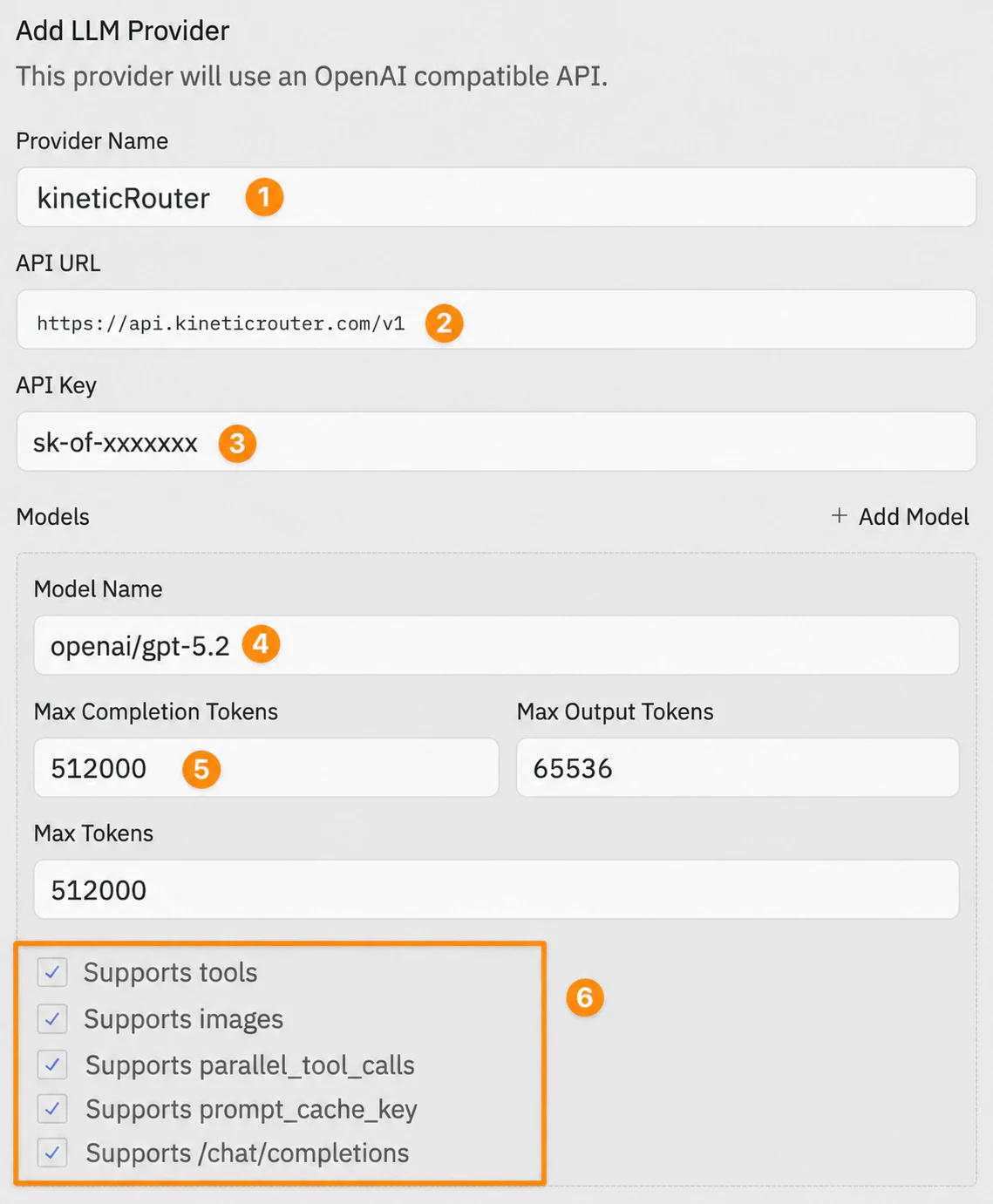
| Label | Field | Value |
|---|---|---|
| ① | Provider Name | kineticRouter |
| ② | API URL | https://api.kineticrouter.com/v1 |
| ③ | API Key | Your kineticRouter API Key |
| ④ | Model Name | openai/gpt-5.4-mini |
| ⑤ | Max Completion Tokens | 512000 |
| ⑥ | Capabilities | Check the capabilities supported by the model |
Click + Add Model to add more models.
The API Key is securely stored in the system keychain (macOS Keychain / Linux Secret Service) and is never written in plaintext to config files.
Getting Started
Zed’s Agent Panel has two modes:
| Mode | Description |
|---|---|
| Zed Agent | Built-in AI assistant using your configured LLM Provider (e.g. kineticRouter) |
| External Agents | External agents such as Claude Code and Codex CLI, run independently |
Start a conversation with Zed Agent:

| Step | Action |
|---|---|
| ① | Click + → Select Zed Agent (⌘ + N) |
| ② | External Agents area shows connected external agents |
| ③ | Bottom-right model selector → kineticRouter group → Select model |

Recommended Models
For recommended models, see the Model Marketplace .
Adding More Models
Each model requires the following parameters:
| Field | Required | Description |
|---|---|---|
name | Yes | Model ID, e.g. openai/gpt-5.4-mini |
display_name | No | UI display name |
max_tokens | Yes | Context window size |
max_output_tokens | No | Maximum output token count |
capabilities.tools | No | Whether Function Calling is supported |
capabilities.images | No | Whether image input is supported |
Pro Tip
Manually filling parameters too slow? Click Copy Page in the top right of this page (or send this page URL directly), along with https://api.kineticrouter.com/v1/models, to an AI and have it auto-generate the complete settings.json configuration.
Go to settings → Click Edit in settings.json in the top right to paste:

Troubleshooting
kineticRouter not showing in model list
Verify settings.json format is correct, then restart Zed.
Authentication error
Command Palette ⌘ + Shift + P → Search language model: reset credentials → Re-enter your API Key.
Model doesn’t support tool calling
Set capabilities.tools to false.