Claude Code Model Provider Setup
We recommend using CC Switch to complete the configuration — an open-source provider management tool with a visual interface, no need to manually edit JSON or environment variables.
1. Install CC Switch
macOS
brew install --cask cc-switchOr go to Releases to download the .dmg for manual installation.
Windows
Go to Releases to download the .msi installer.
Linux
# Debian / Ubuntu
sudo dpkg -i CC-Switch-*.deb

# Fedora / RHEL
sudo rpm -i CC-Switch-*.rpm

# AppImage
chmod +x CC-Switch-*.AppImage && ./CC-Switch-*.AppImage
Supports macOS 12+, Windows 10+, Ubuntu 22.04+ / Debian 11+ / Fedora 34+
2. Add kineticRouter Provider
Step 1: Add a New Provider
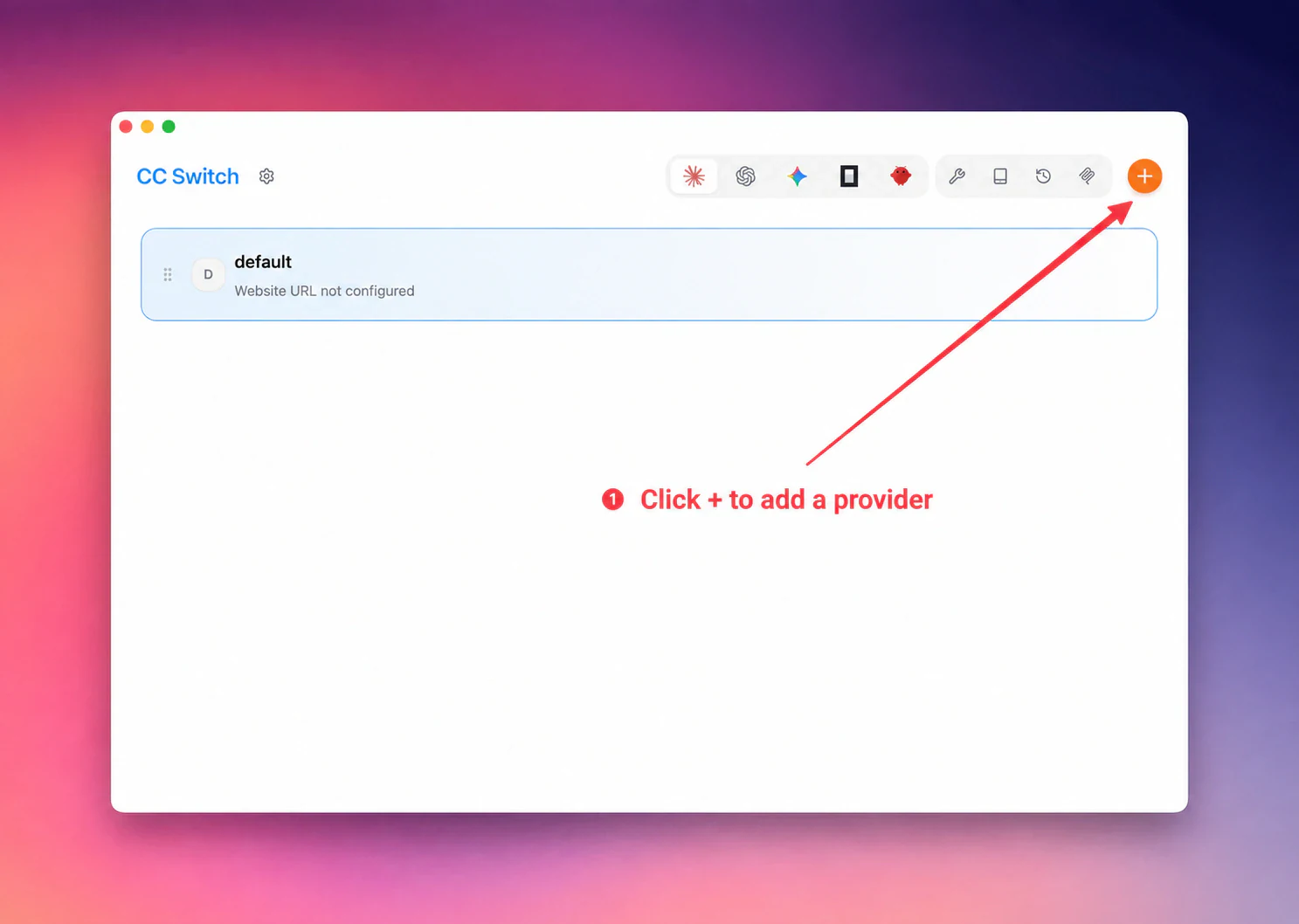
Open CC Switch, go to the provider management page, and click the + button in the upper right corner.
Step 2: Fill in the Configuration
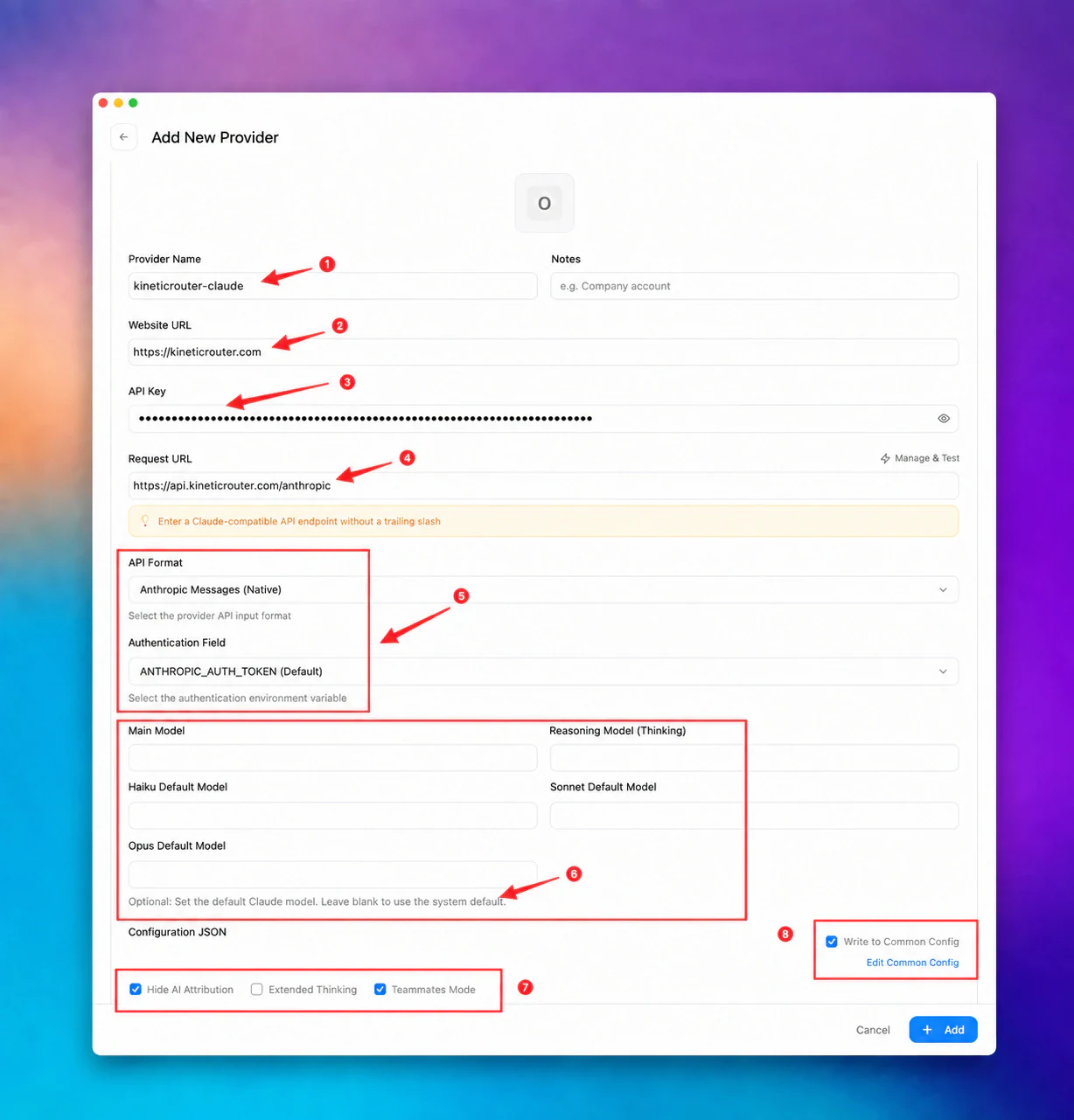
Fill in the fields as shown in the image below, then click + Add to complete.
| Field | Value | Description |
|---|---|---|
| ❶ Provider Name | kineticrouter-claude | Custom name for easy identification |
| ❷ Website URL | https://kineticrouter.com | Provider website |
| ❸ API Key | Your kineticRouter API Key | Get it at console.kineticrouter.com/api-keys |
| ❹ Request URL | https://api.kineticrouter.com/anthropic | Do not add a trailing slash |
| ❺ API Format / Auth Field | Anthropic Messages (Native) / ANTHROPIC_AUTH_TOKEN (Default) | Keep defaults |
| ❻ Model Configuration | Leave empty | Leave empty to use the default Claude model |
| ❼ Options | Check “Hide AI Signature” and “Teammates Mode” | Check as needed |
| ❽ Write to Global Config | ✅ Checked | Writes to global config, applies to all projects |
CC Switch automatically writes to ~/.claude/settings.json — no manual file editing required.
Step 3: Activate the Provider
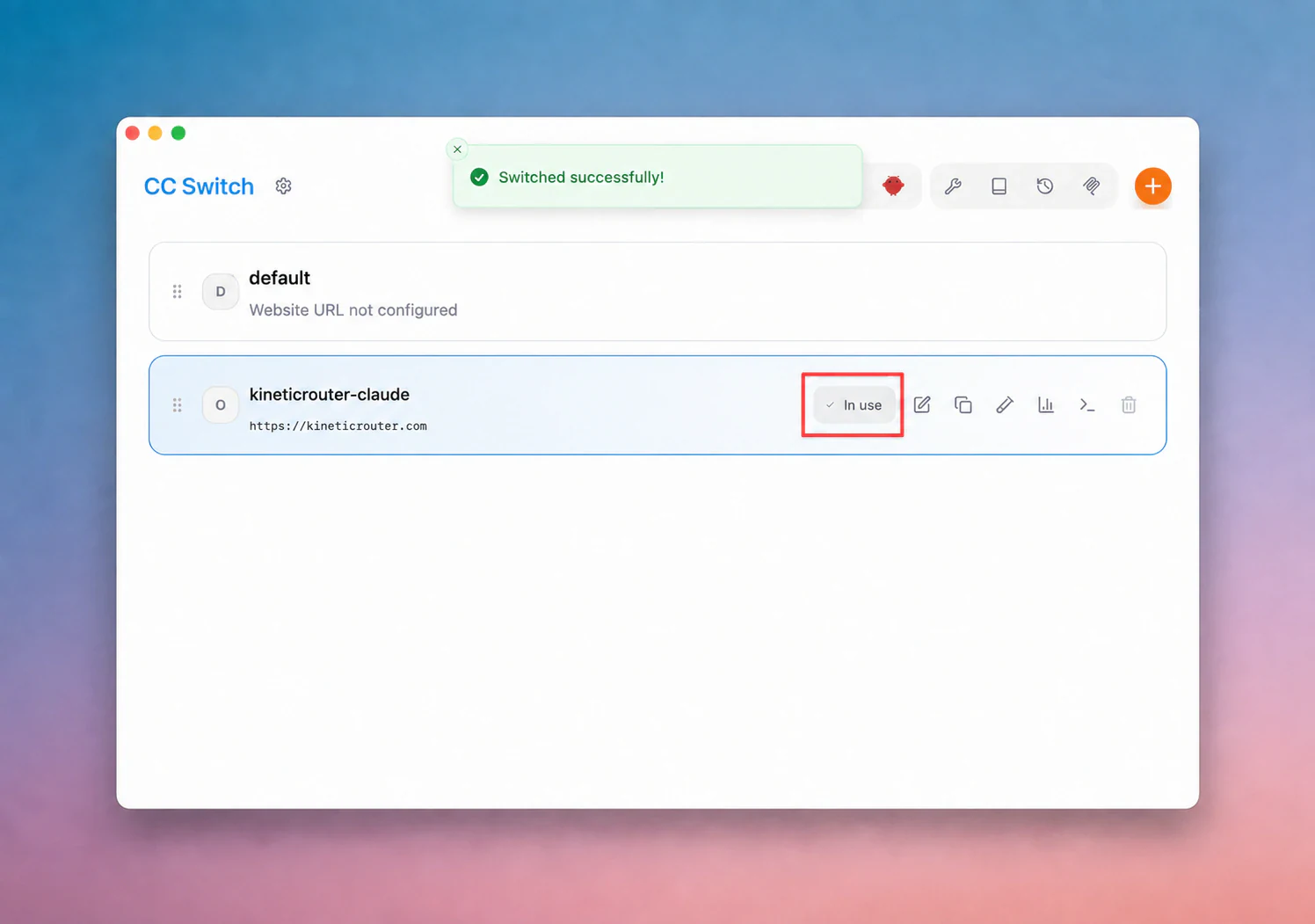
After adding, return to the list, select kineticrouter-claude, and click the Use button. A “Switched successfully” notification confirms the setup is complete.
3. Verify Configuration
Navigate to your project directory and start Claude Code:
cd your-project
claude
On first launch, press Esc to skip login. After startup, check the top info bar and confirm it shows API Usage Billing (❶), indicating billing through kineticRouter:
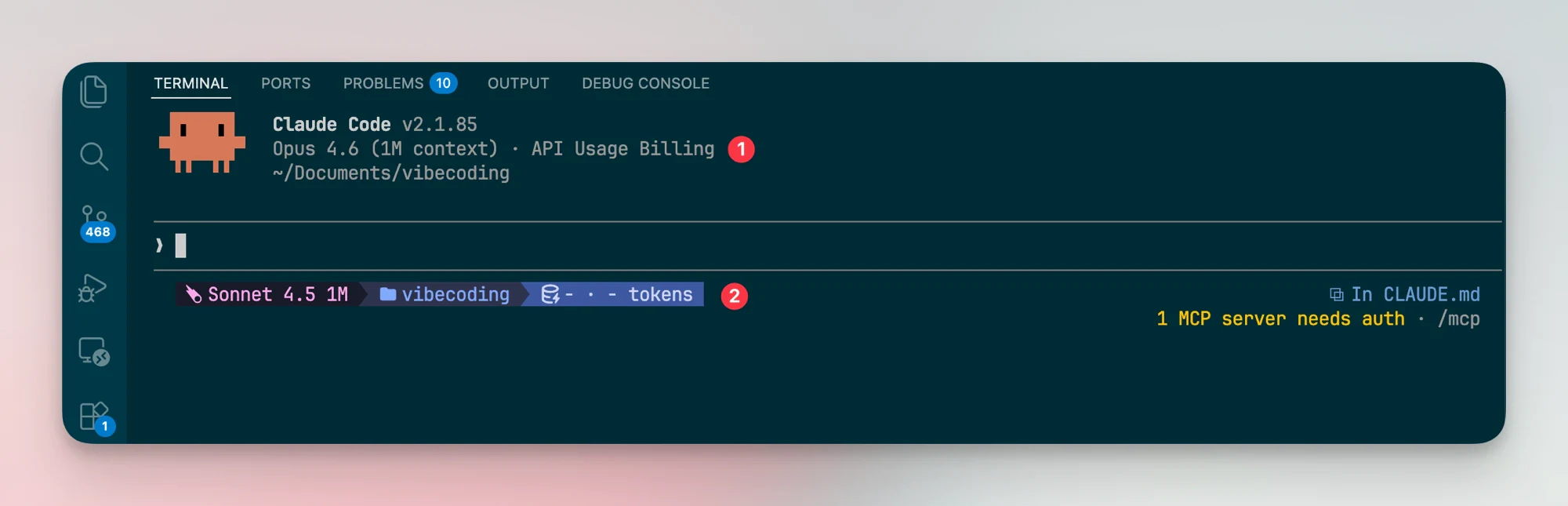
If the above information is correct, the configuration is successful.
4. Use Other Models
With kineticRouter, you can use non-Claude models (such as Qwen, GLM, DeepSeek, etc.) in Claude Code. Simply filter compatible models from the Model Plaza and configure model mapping.
Step 1: Filter Compatible Models
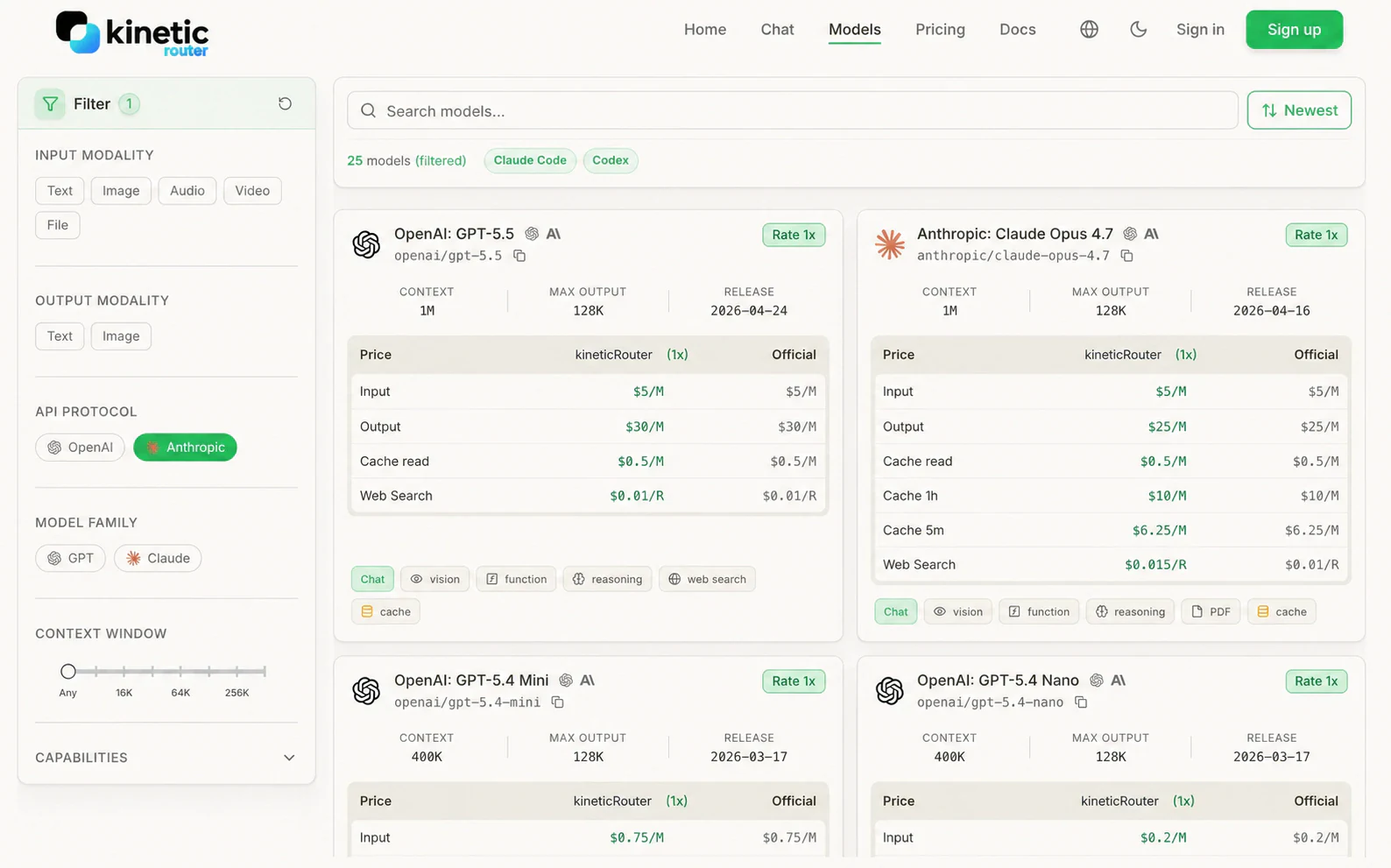
Go to the kineticRouter Model Plaza , and select Anthropic under API Protocol on the left sidebar to filter models that support the Anthropic protocol.
Step 2: Copy the Model Name
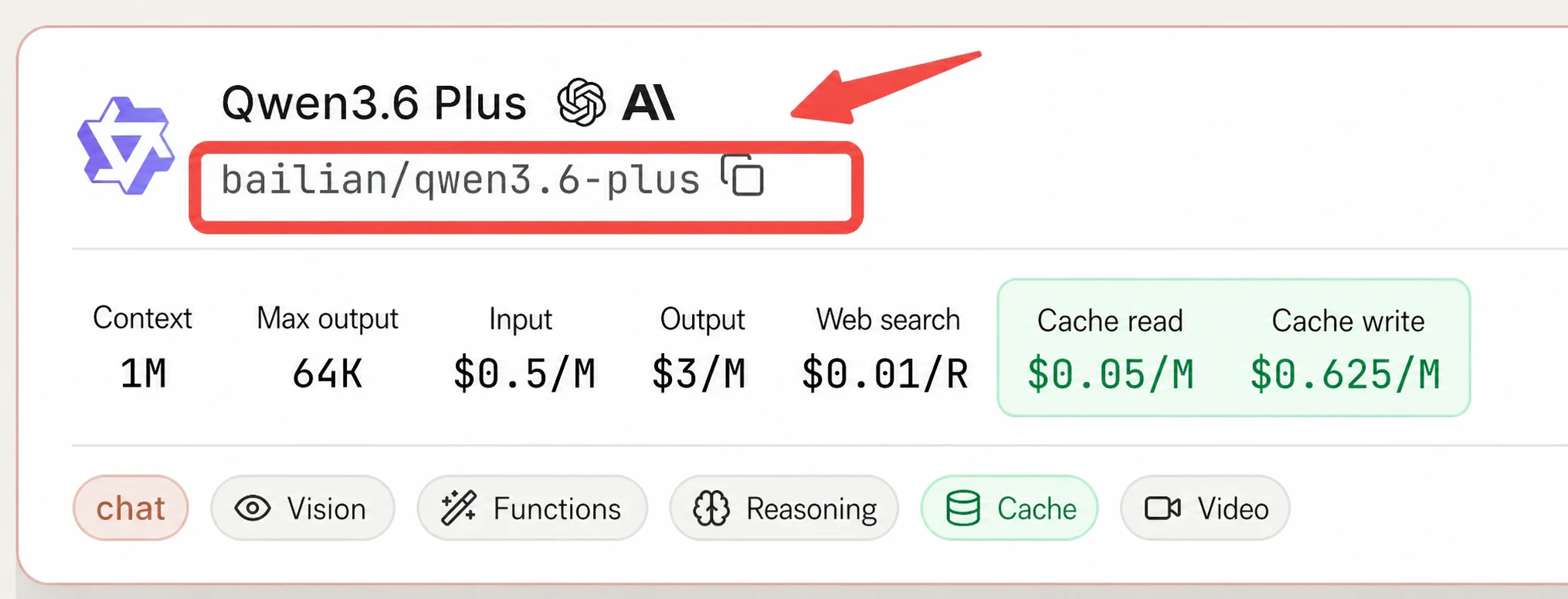
Click on the target model card — there’s a copy button next to the model name to copy the model ID with one click (e.g., bailian/qwen3.6-plus).
Step 3: Configure Model Mapping
Go back to CC Switch and find the Model Mapping section in the provider configuration. Fill in the copied model name into the corresponding model slots. Browse compatible models at the kineticRouter Model Plaza :
| Mapping Slot | Description |
|---|---|
| Primary Model | Default model used by Claude Code |
| Thinking Model | Model for deep reasoning |
| Haiku Default | Lightweight task model |
| Sonnet Default | Medium complexity task model |
| Opus Default | High complexity task model |
Claude thinking parameters depend on the model version: Sonnet 4.5 uses enabled + budget_tokens; Sonnet 4.6 / Opus 4.6 should use adaptive. See Claude Thinking Modes in the Anthropic Messages API for the full matrix.
If the provider natively offers Claude series models, model mapping is usually not needed. Only fill this in when you need to map requests to different model names.
Troubleshooting
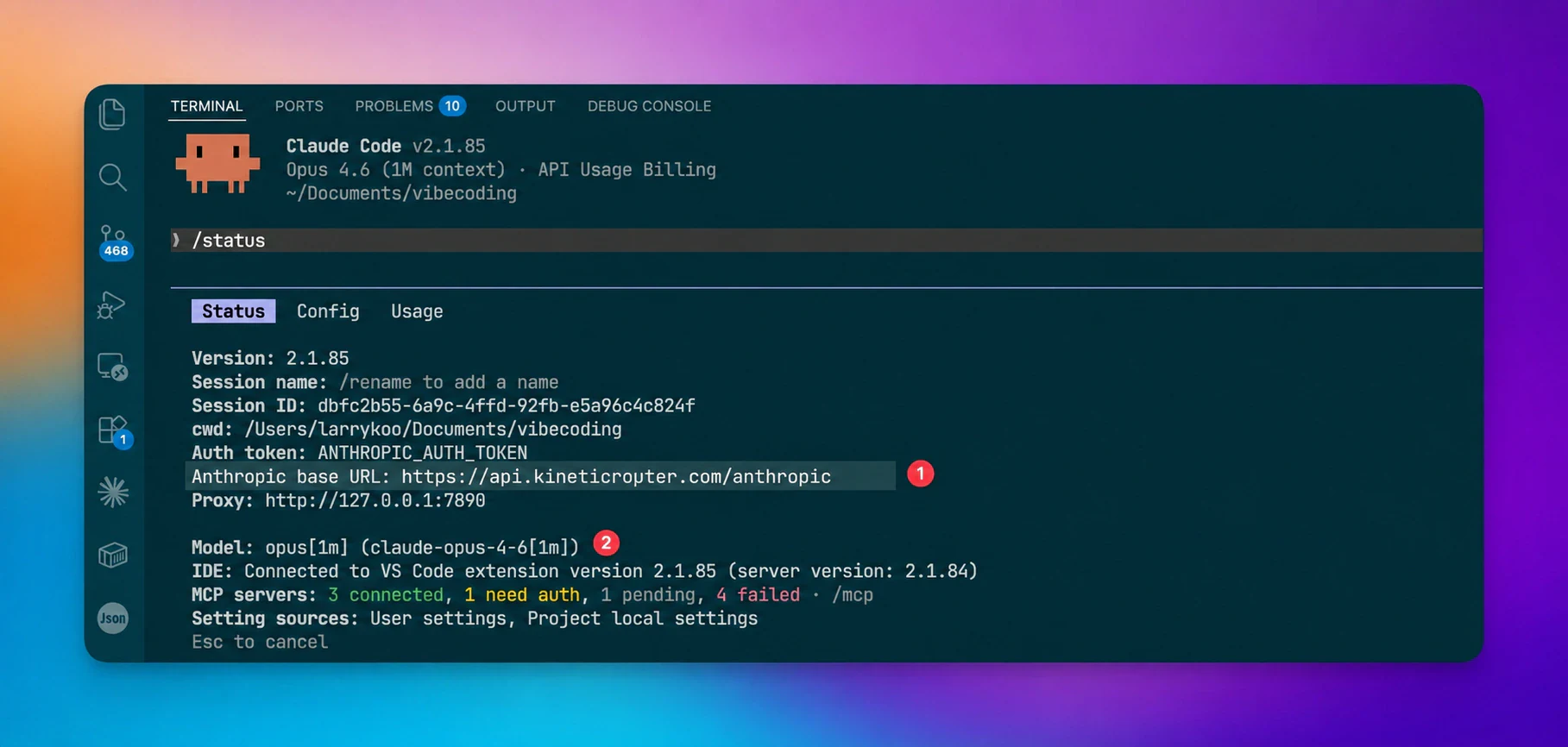
If you encounter issues, run /status in the Claude Code terminal to check the configuration:
/statusVerify the following key fields:
- ❶ Anthropic base URL is
https://api.kineticrouter.com/anthropic - ❷ Model shows the currently active model
Q: “Authentication error” message
Confirm the Anthropic base URL is correct and check that the API Key is valid.
Q: Connection timeout
Verify the request URL is https://api.kineticrouter.com/anthropic with no trailing slash.
Q: Streaming response lag
kineticRouter has built-in global acceleration. This is usually a local network issue — check your local connection and retry.