LobeHub Setup
LobeHub is a powerful open-source AI desktop client (macOS, Windows, Linux, Web) that supports multiple AI service providers.
kineticRouter supports four protocols in LobeHub:
| Protocol | Provider | API Proxy URL | Example Models (partial) |
|---|---|---|---|
| OpenAI Chat (recommended) | OpenAI | https://api.kineticrouter.com/v1 | openai/gpt-4.1, openai/gpt-4.1-mini, openai/gpt-5.4-mini, etc. |
| OpenAI Response | OpenAI | https://api.kineticrouter.com/v1 | openai/gpt-4.1, openai/gpt-5.4-mini, GPT series only |
| Claude | Anthropic | https://api.kineticrouter.com/anthropic | anthropic/claude-sonnet-4.6, anthropic/claude-opus-4.6, anthropic/claude-haiku-4.5 |
Prerequisites
- An kineticRouter account with an API Key (Get one here )
- LobeHub installed (Download )
Setup Steps
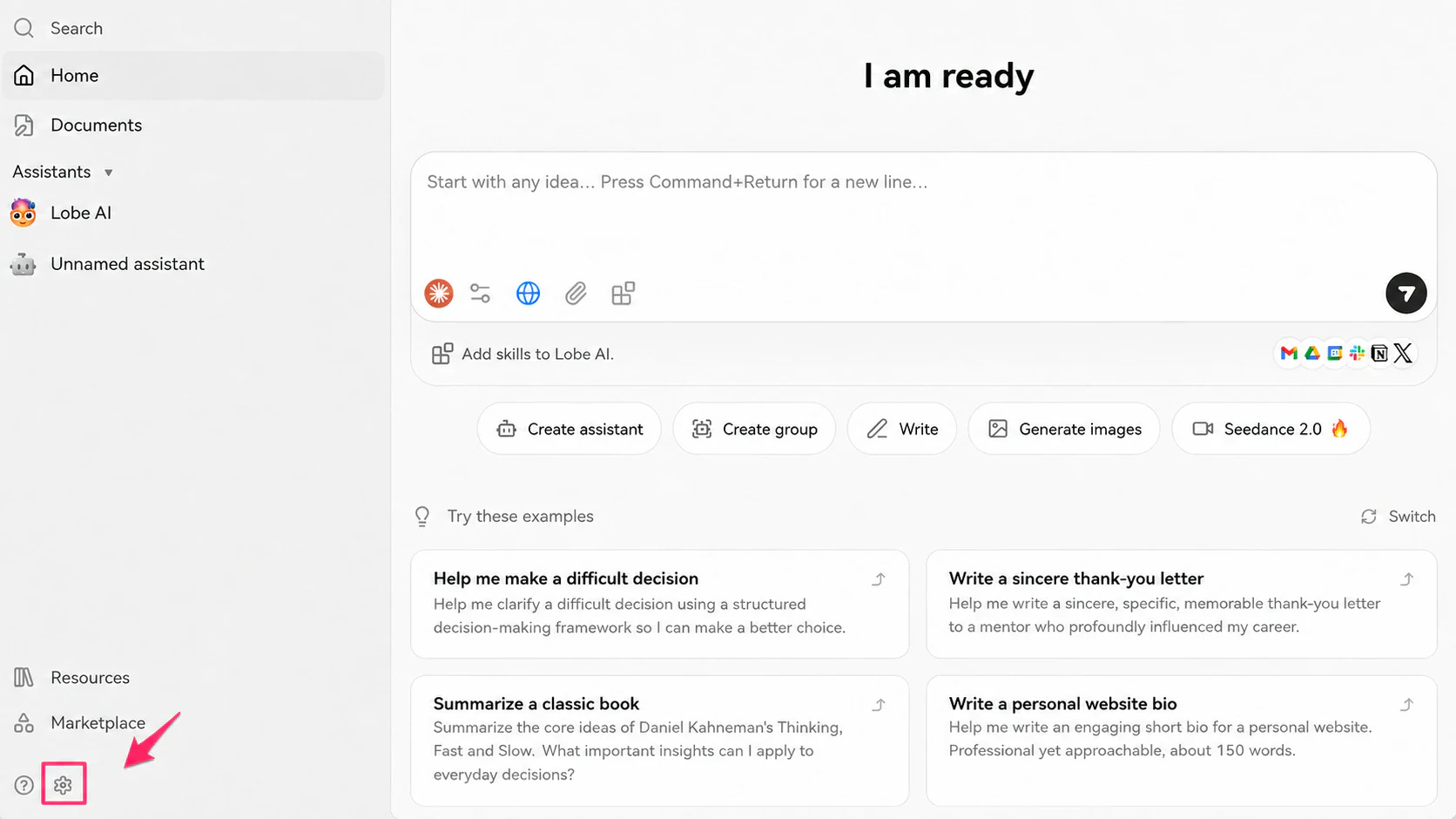
Step 1: Open Settings
Launch LobeHub and click the Settings icon in the bottom left.
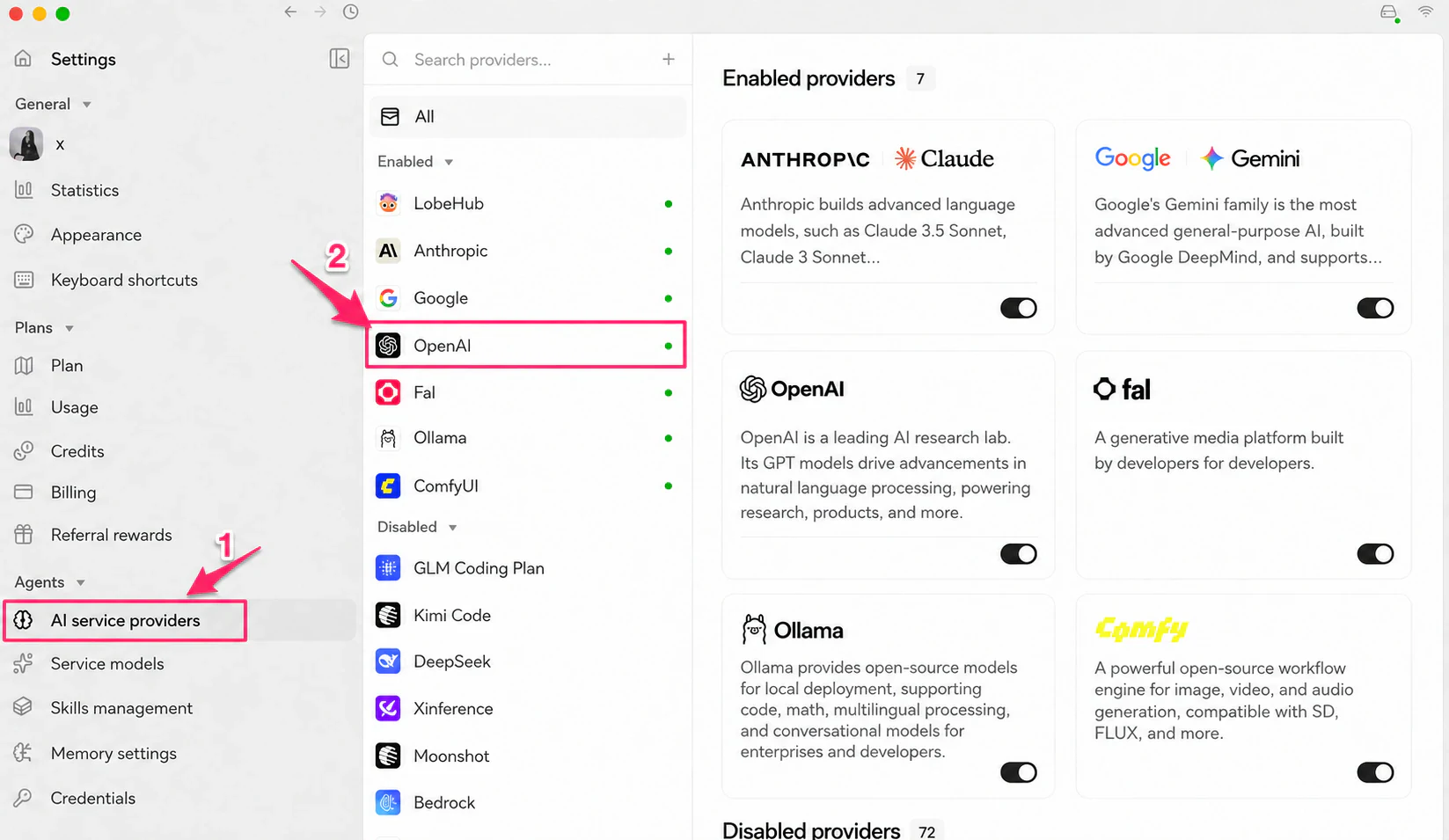
Step 2: Go to AI Service Providers
In the settings sidebar, click AI Service Providers, then select the provider you want to configure.
Step 3: Fill in the Configuration
Select the provider and fill in the details. Example using OpenAI Chat:
| Field | Value |
|---|---|
| API Key | Your kineticRouter API Key |
| API Proxy URL | https://api.kineticrouter.com/v1 |
| Use Responses API | Off (OpenAI Chat) / On (OpenAI Response) |
API Proxy URL by protocol:
| Protocol | Provider | API Proxy URL |
|---|---|---|
| OpenAI Chat / Response | OpenAI | https://api.kineticrouter.com/v1 |
| Claude | Anthropic | https://api.kineticrouter.com/anthropic |
After filling in, select a model in the connectivity check field and click the check button. “Check passed” means the configuration is successful.
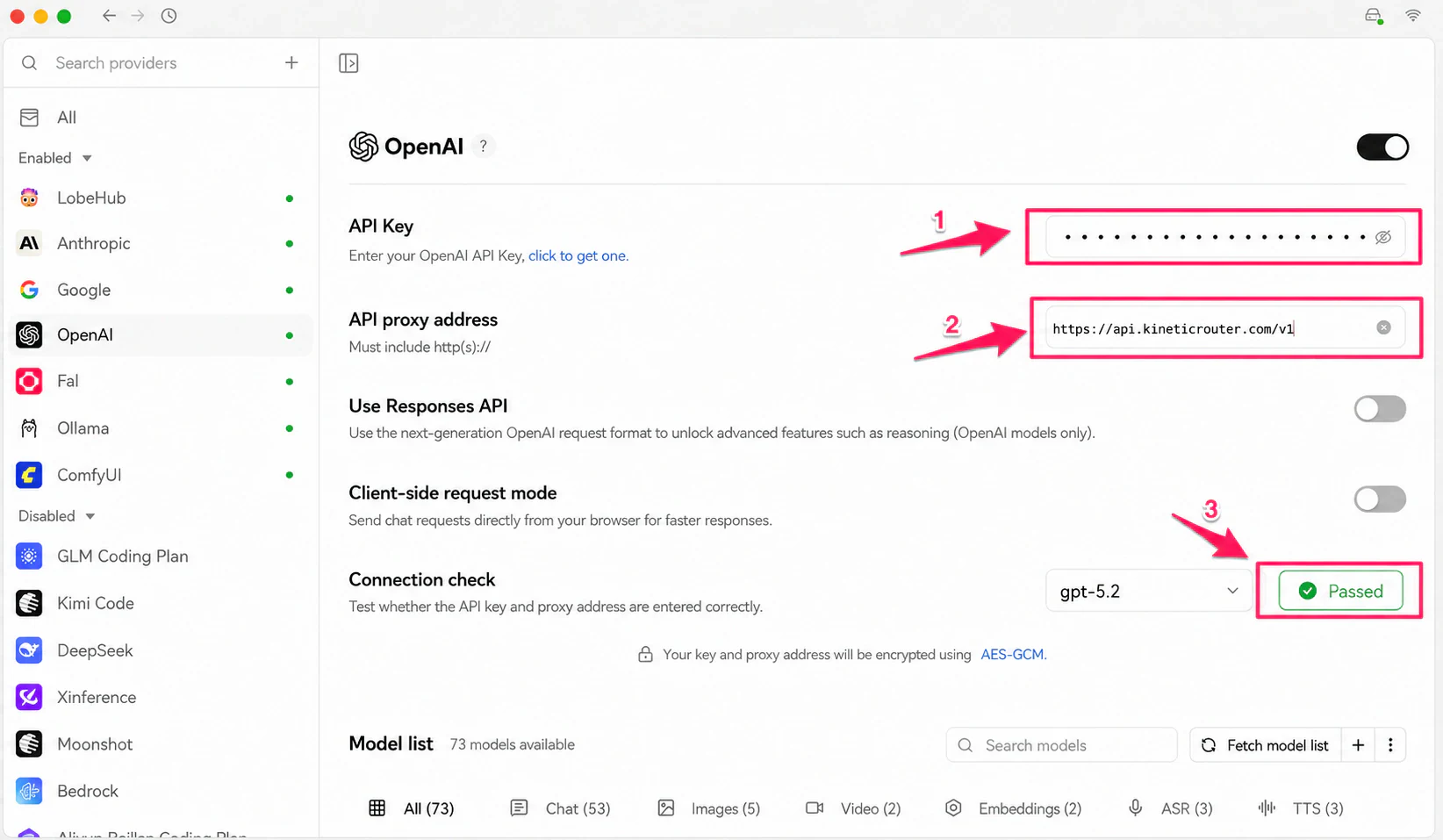
OpenAI Chat vs OpenAI Response: When “Use Responses API” is off, requests go to /v1/chat/completions (Chat). When on, requests go to /v1/responses (Response, GPT series only).
Start Using
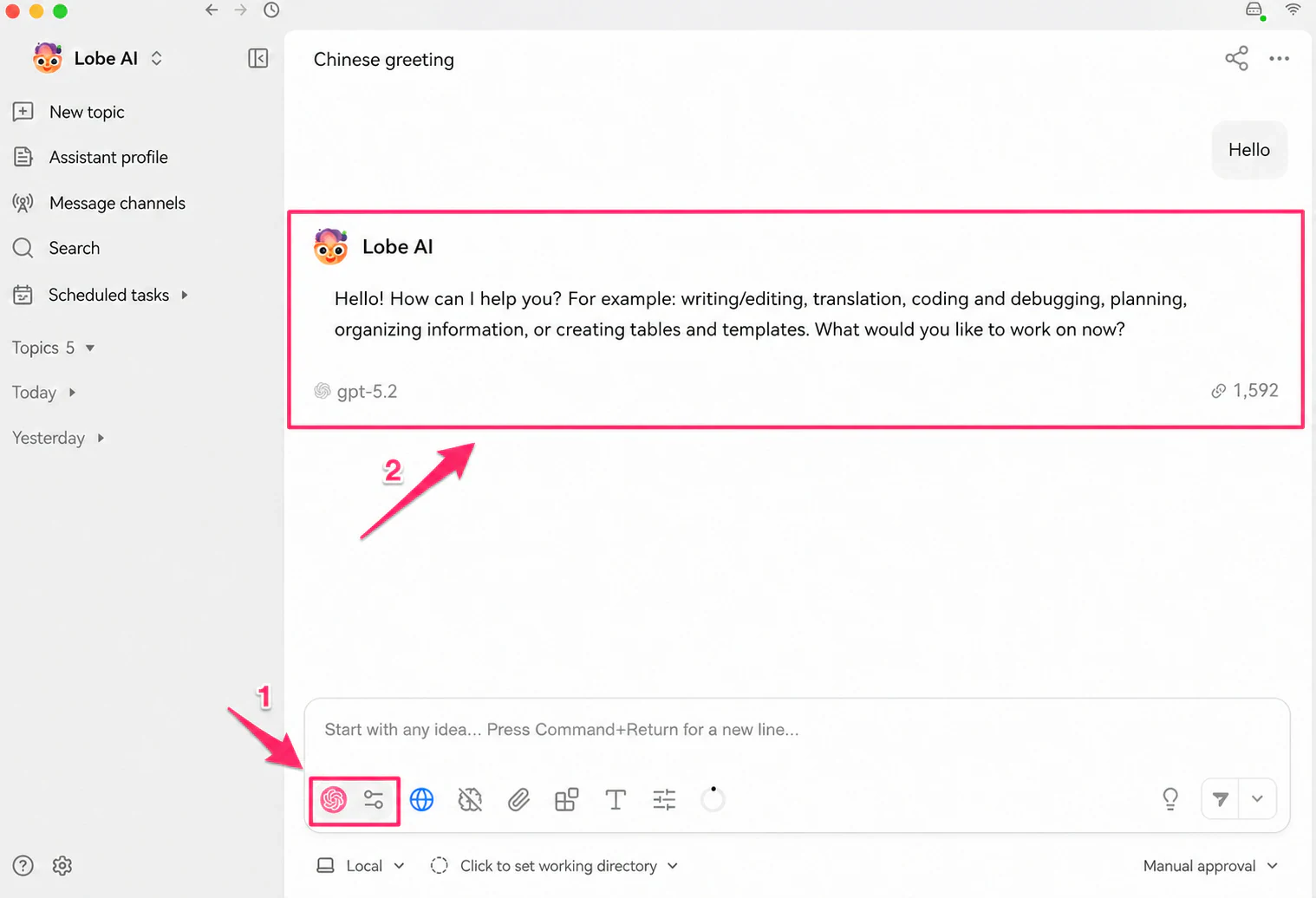
After setup, go back to the main screen, click the model icon on the left of the input box to select a model, and start chatting.
Troubleshooting
Q: Connectivity check fails
- Make sure the API Proxy URL is correct (see table above)
- Make sure your API Key is copied in full from the kineticRouter Console
- Check your network connection
Q: What’s the difference between OpenAI Chat and OpenAI Response?
Both use the same API Proxy URL https://api.kineticrouter.com/v1, but differ in request format:
- OpenAI Chat (Responses API off): uses
/v1/chat/completions, supports all models, best compatibility - OpenAI Response (Responses API on): uses
/v1/responses, GPT series only, but supports new features likeinstructionscaching — better for high-frequency use cases
Q: The model I want isn’t in the list
Click “Fetch model list” to auto-fetch, or click + to add a custom model. Use the provider/model-name format for the model ID, for example:
| Model | Model ID |
|---|---|
| DeepSeek V3 | deepseek/deepseek-v3.2 |
| Claude Sonnet | anthropic/claude-sonnet-4.6 |
See all models at Models .