Cline Configuration
Cline is a popular VS Code AI coding plugin (formerly Claude Dev). By integrating with kineticRouter, you can use a variety of models.
Prerequisites
- Registered kineticRouter account with an API Key (Get one here )
- VS Code installed
Configuration Steps
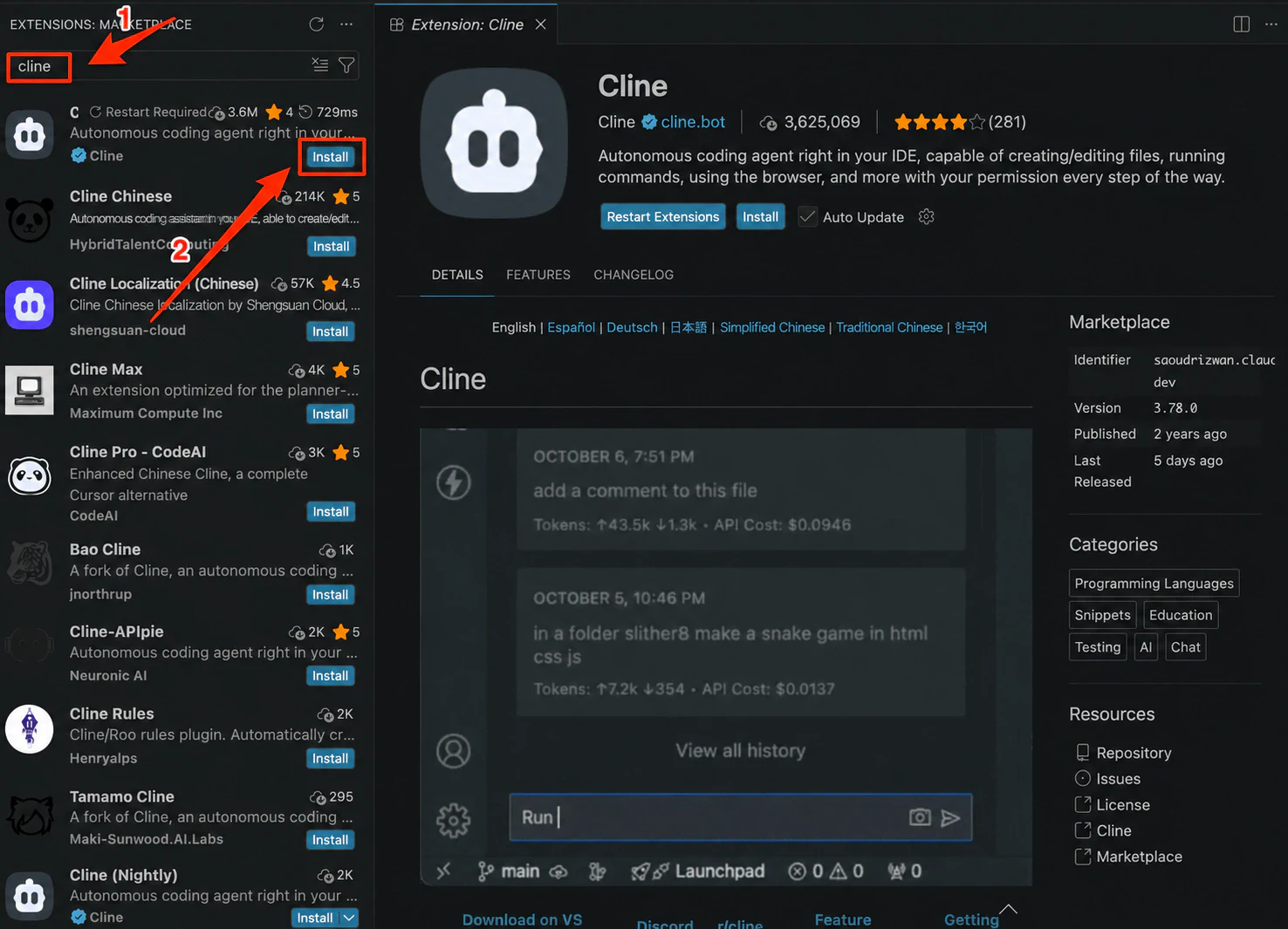
Step 1: Install Cline
Search for Cline in the VS Code Extension Marketplace and install it.
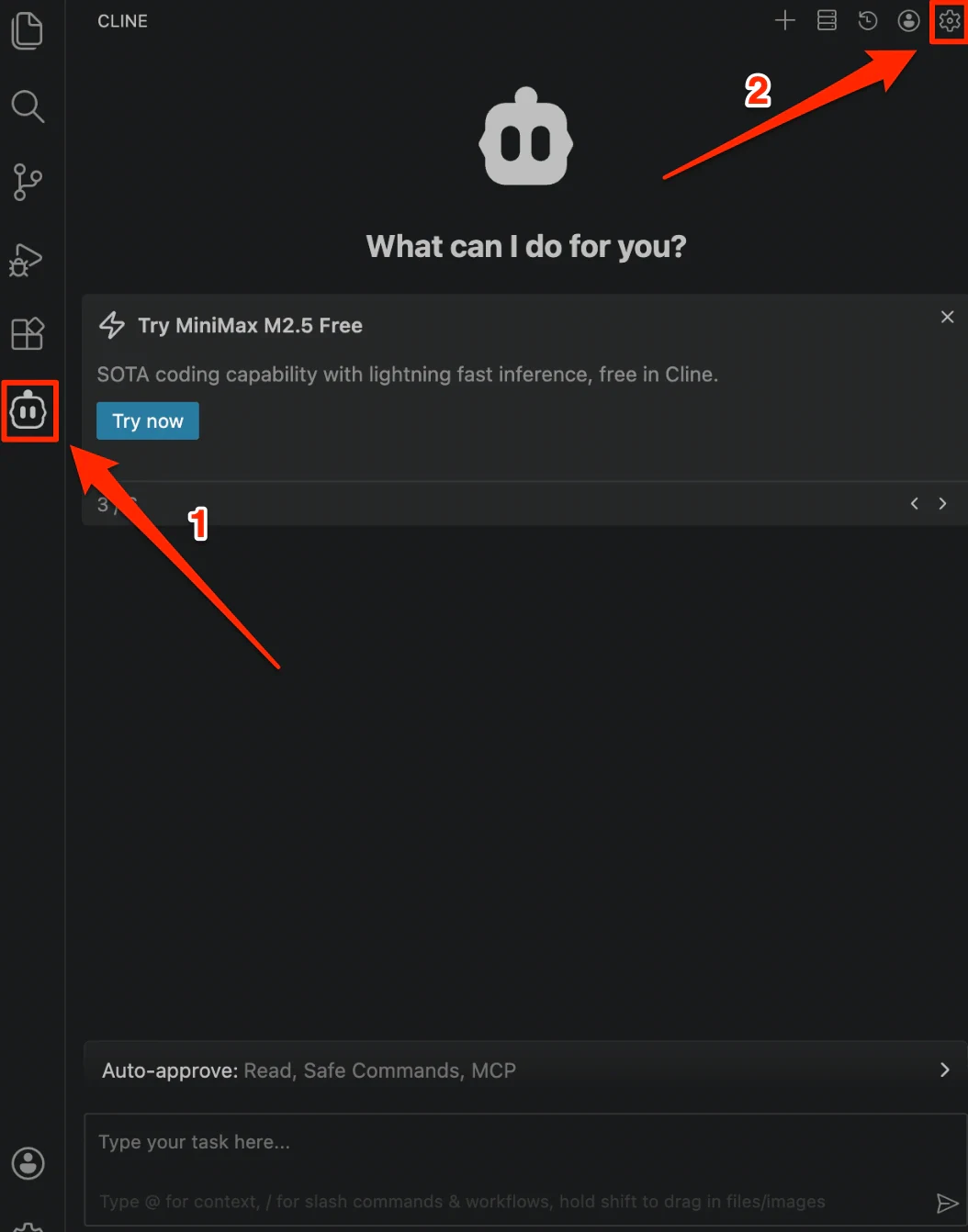
Step 2: Open Settings
Click the Cline icon in the left activity bar to open the Cline panel, then click the Settings icon in the top right corner.
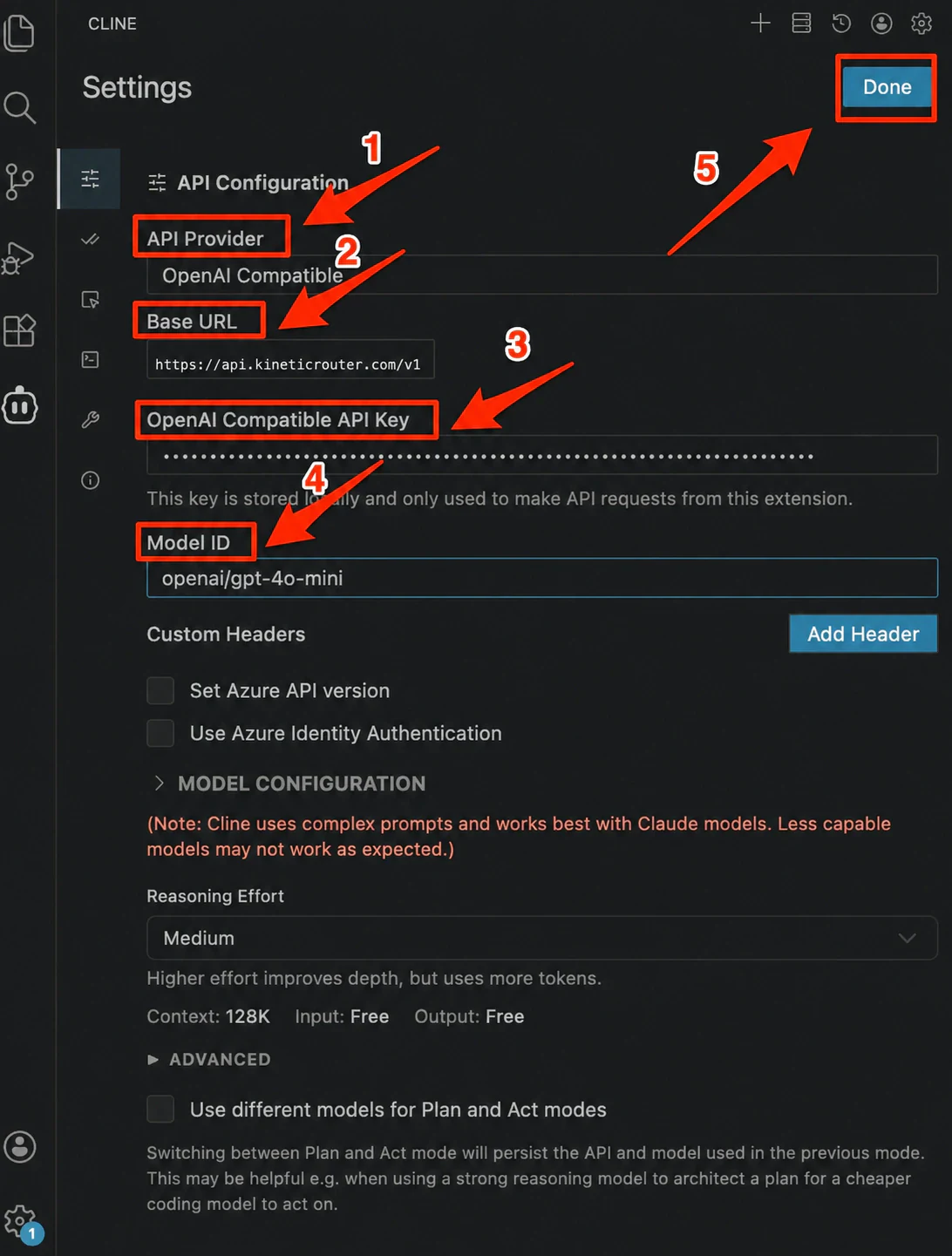
Step 3: Fill in Configuration and Save
Fill in the following information on the API Configuration page, then click Done in the top right corner:
| Field | Value |
|---|---|
| API Provider | OpenAI Compatible |
| Base URL | https://api.kineticrouter.com/v1 |
| OpenAI Compatible API Key | Your kineticRouter API Key |
| Model ID | openai/gpt-4.1 (or another model) |
Cline also supports the Anthropic protocol. Use the corresponding Base URL: https://api.kineticrouter.com/anthropic.
Recommended Models
For recommended models, see the Model Marketplace .
FAQ
Q: Model not supported error
Make sure the Model ID format is correct. When using OpenAI Compatible, the model name must include the vendor/ prefix, e.g. openai/gpt-4.1.
Q: Unable to use Tool Use feature
Switch the API Provider to Anthropic and change the Base URL to https://api.kineticrouter.com/anthropic for full Tool Use support.