Immersive Translate Setup
Immersive Translate is a popular browser translation extension supporting bilingual side-by-side display, capable of translating web pages, PDFs, subtitles, and input fields across Chrome, Firefox, and Safari.
By configuring kineticRouter as your translation service, you can use GPT, Claude, DeepSeek, and other available models with a single API Key.
Prerequisites
- An kineticRouter account with an API Key (Get one here )
- Immersive Translate installed (Download )
Supported Protocols
Immersive Translate supports three protocols with kineticRouter:
| Protocol | Setup Method | Custom API Endpoint | Supported Models |
|---|---|---|---|
| OpenAI Chat | Custom service | https://api.kineticrouter.com/v1/chat/completions | All models |
| OpenAI Response | Custom service | https://api.kineticrouter.com/v1/responses | All models |
| Claude | Built-in Claude provider | https://api.kineticrouter.com/anthropic | Claude series |
Setup Steps
Step 1: Open Translation Service Settings
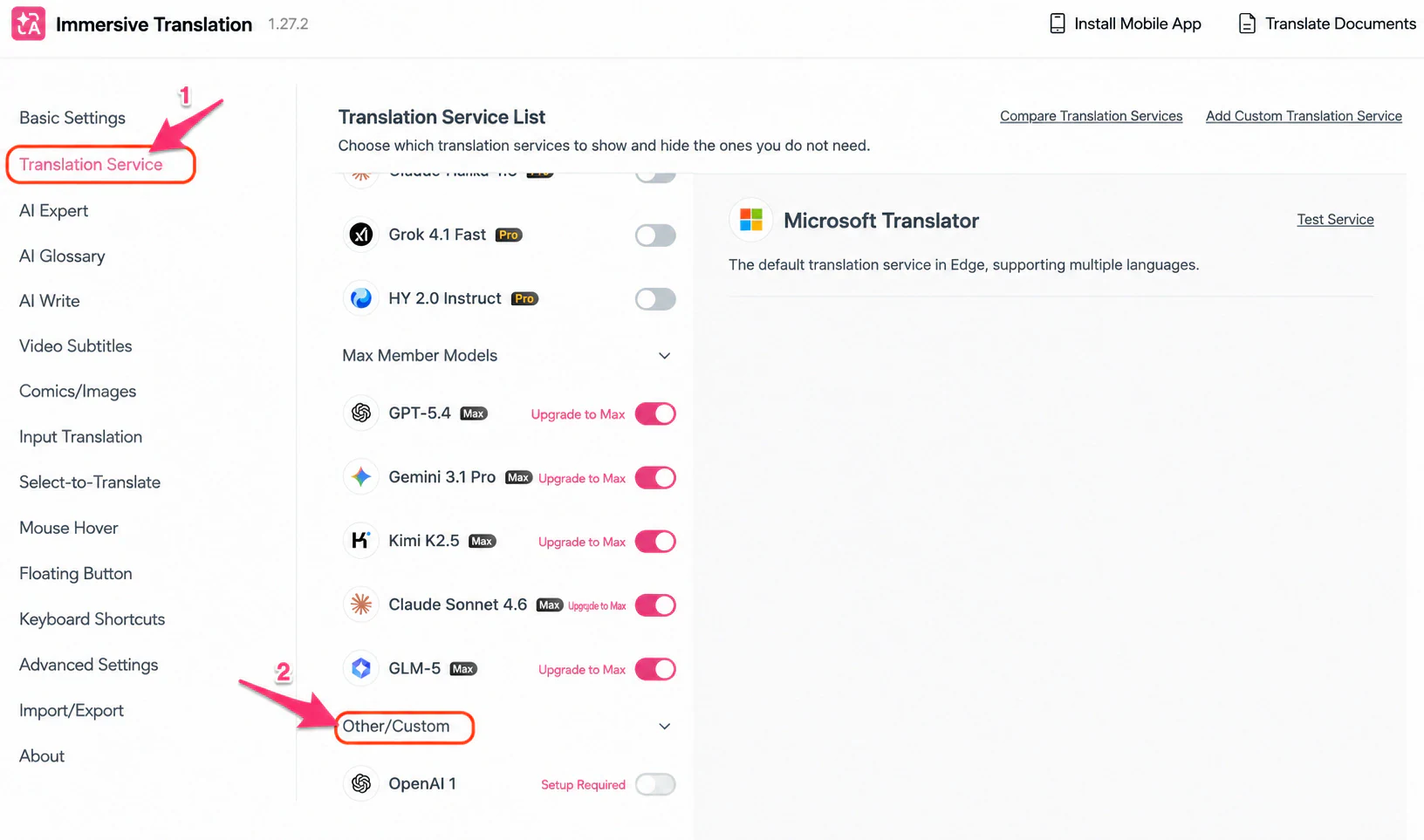
Click the Immersive Translate icon in your browser toolbar, go to Settings, then click the Translation Service tab at the top.
Step 2: Find the Custom Service Entry
Scroll down to the Other/Custom section on the Translation Service page.
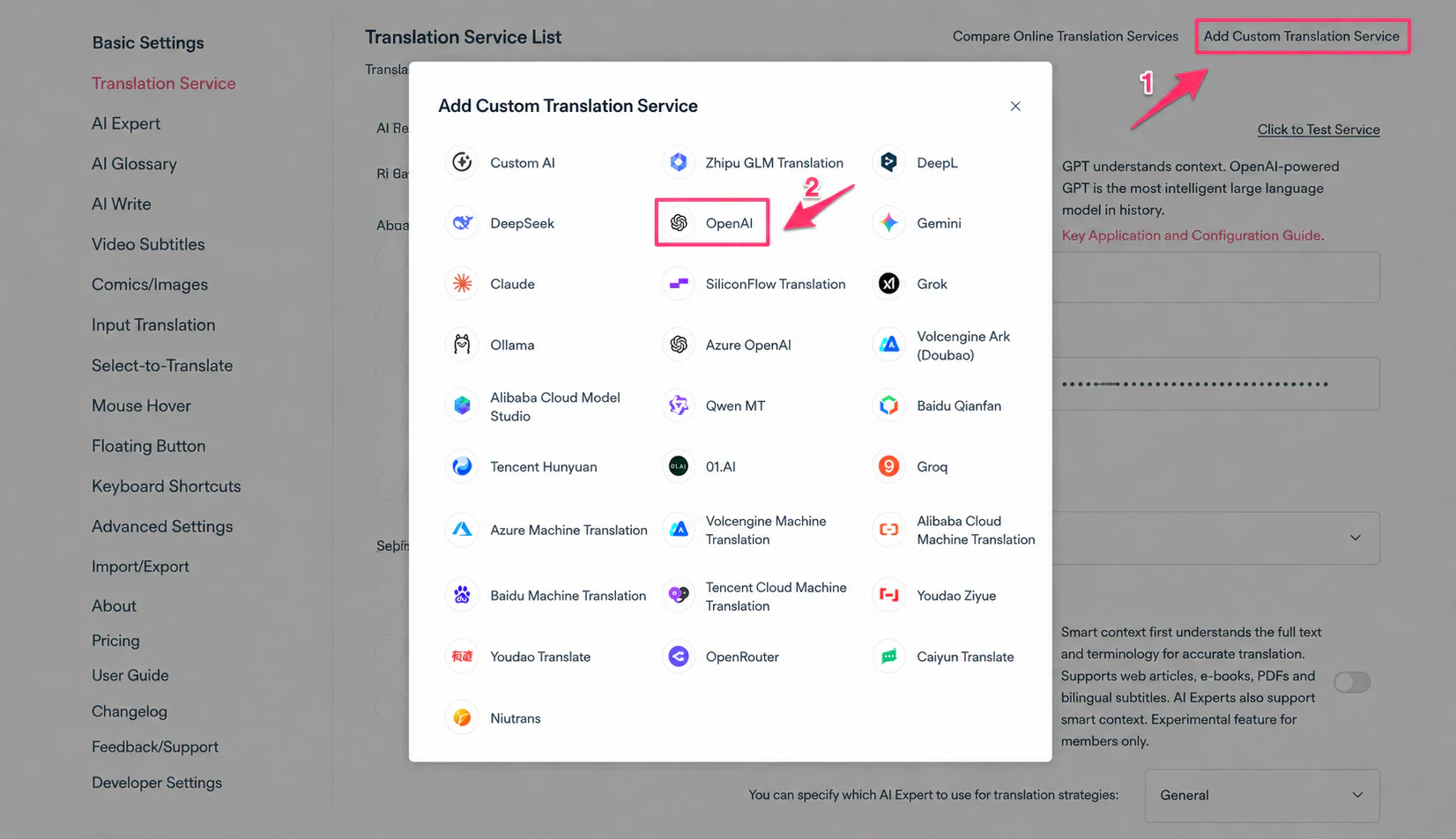
Click the Add Custom Translation Service button in the top right.
Step 3: Fill in the Configuration
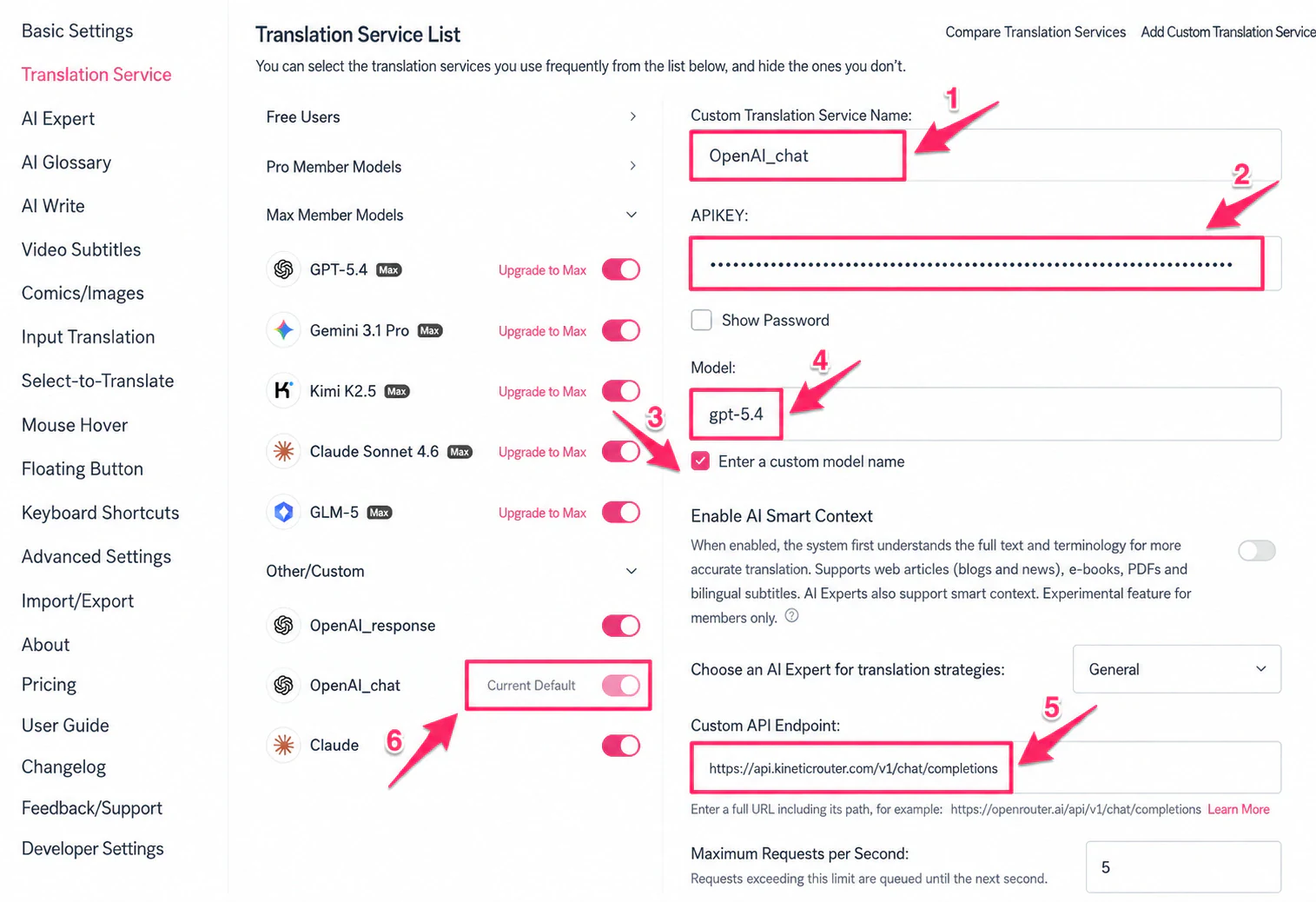
Fill in the details based on your chosen protocol:
OpenAI Chat (supports available OpenAI-compatible models)
| Field | Value |
|---|---|
| Service Name | kineticrouter (or any name) |
| Custom API Endpoint | https://api.kineticrouter.com/v1/chat/completions |
| API Key | Your kineticRouter API Key |
| Model | Check “Enter custom model name”, e.g. openai/gpt-4.1 |
OpenAI Response
| Field | Value |
|---|---|
| Service Name | kineticrouter-response (or any name) |
| Custom API Endpoint | https://api.kineticrouter.com/v1/responses |
| API Key | Your kineticRouter API Key |
| Model | Check “Enter custom model name”, e.g. openai/gpt-4.1 |
Claude (Anthropic native protocol)
Use the built-in Claude provider — no need to add a custom service:
| Field | Value |
|---|---|
| API Key | Your kineticRouter API Key |
| Custom API Endpoint | https://api.kineticrouter.com/anthropic |
| Model | Check “Enter custom model name”, fill in claude-sonnet-4.6 |
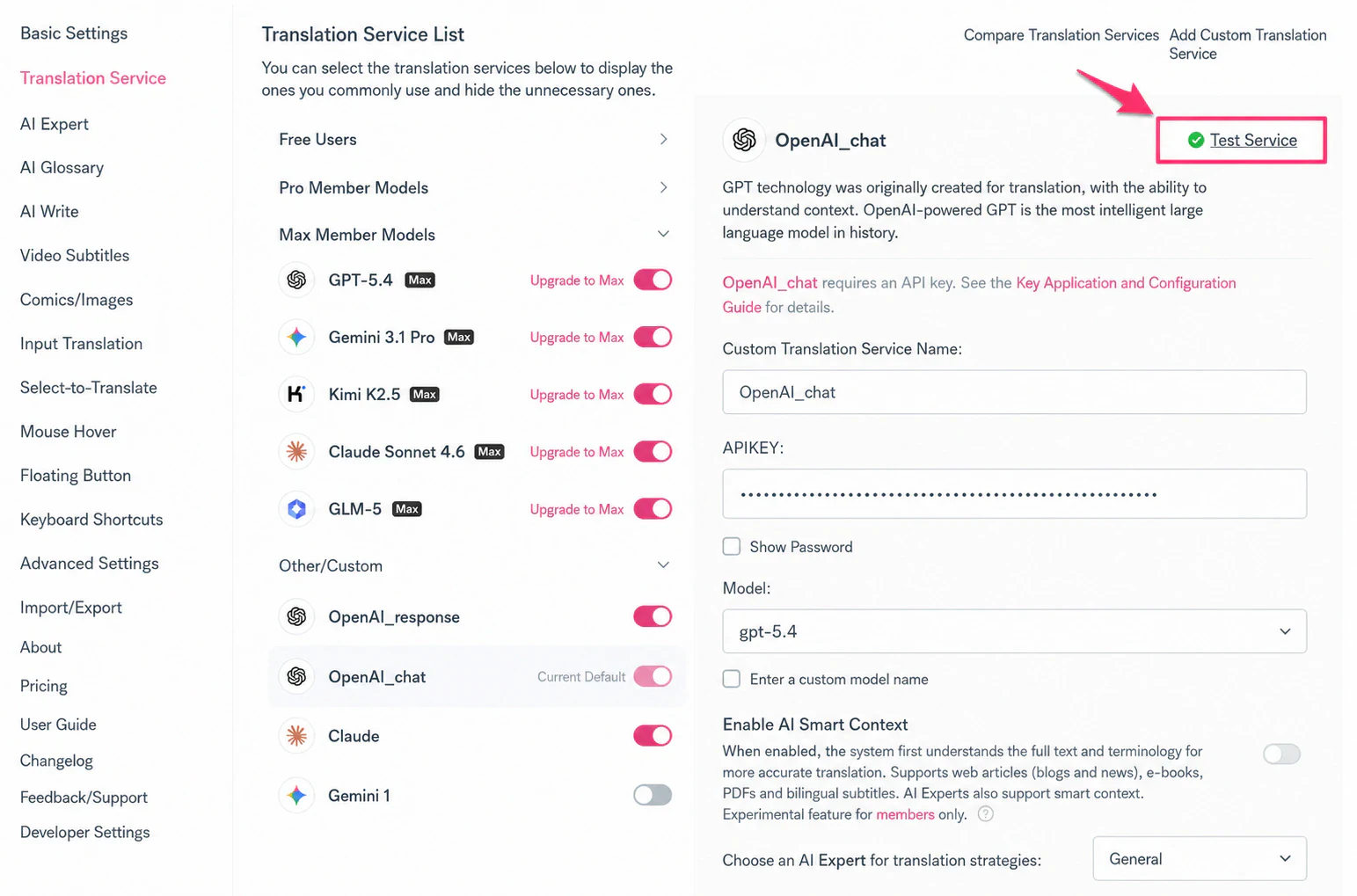
Click Test Service, and once it passes click Save.
Step 4: Set as Default and Start Translating
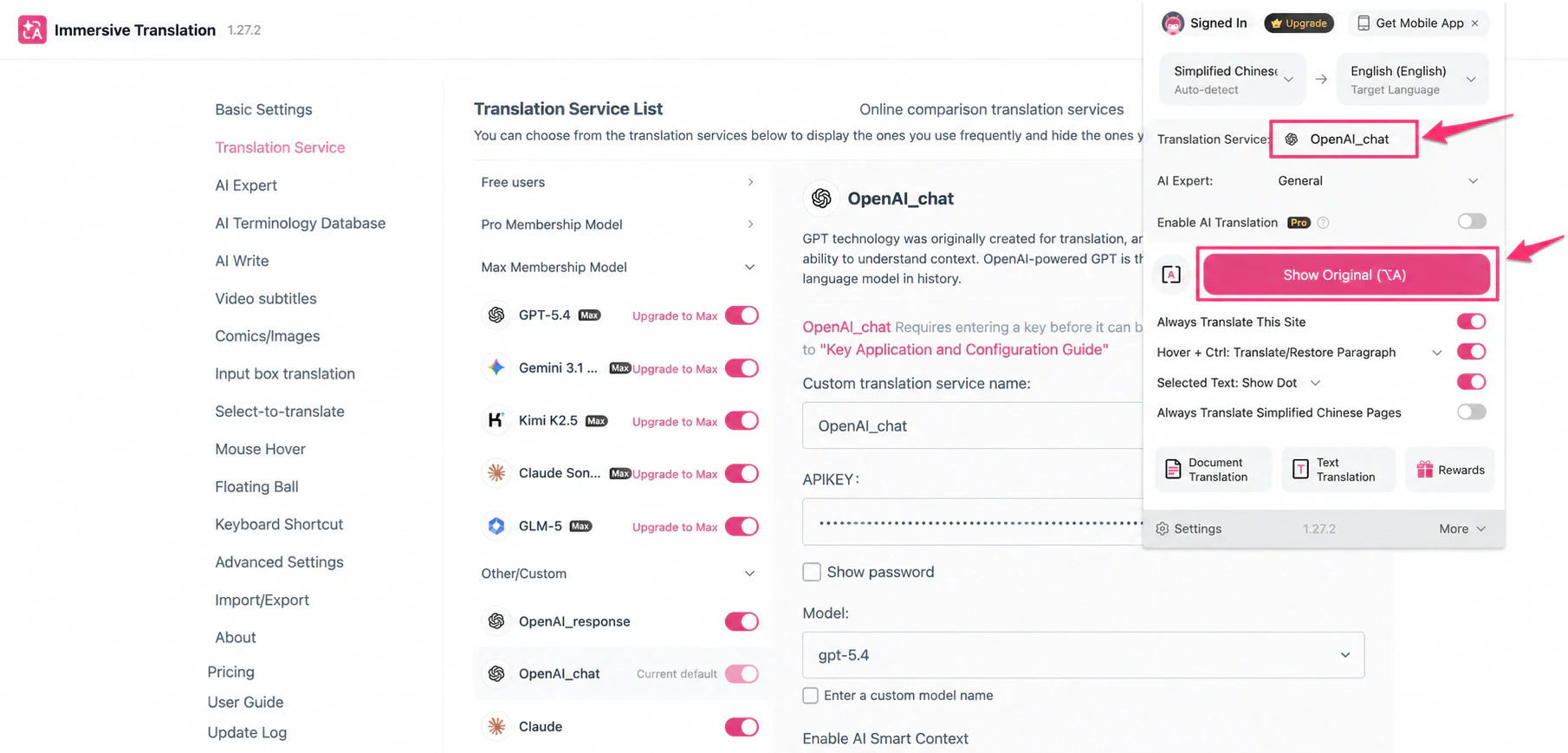
In the translation service list, toggle the switch next to your configured service to set it as current default. Then open any webpage and press Alt + A (Mac: Option + A) to translate.
Translation Result
After setup, pages display original and translated text side by side.
Available Model Examples
For recommended models, see the kineticRouter Model Marketplace .
Troubleshooting
Q: Error String contains non ISO-8859-1 code point during test
Your API Key contains non-ASCII characters (e.g. full-width spaces). Re-copy the API Key from the kineticRouter Console and make sure there are no extra characters.
Q: How do I switch between translation services?
On the Translation Service page, toggle the switch next to the service you want to use as the current default.