WorkBuddy Configuration
WorkBuddy is an AI Agent desktop app from Tencent that supports everyday office tasks, coding, document processing, and more. By connecting kineticRouter, you can use GPT, Claude, Grok, DeepSeek, and other available models with a single API Key.
Prerequisites
- A registered kineticRouter account with an API Key (Get one here )
- WorkBuddy installed (Download )
Configuration Steps
Step 1: Open Settings
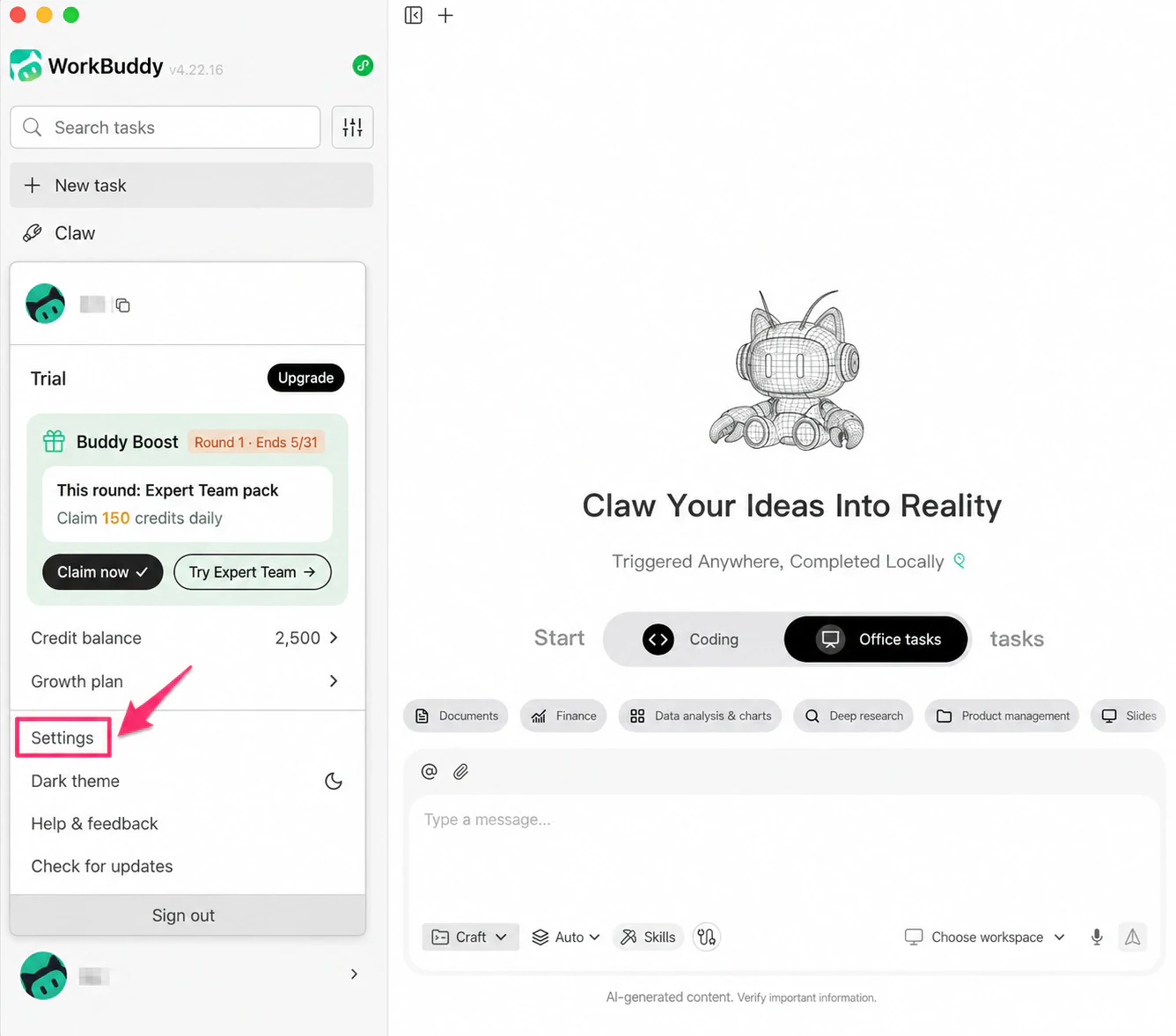
Launch WorkBuddy, click your avatar in the bottom-left corner, then click Settings in the pop-up menu.
Step 2: Go to Model Configuration
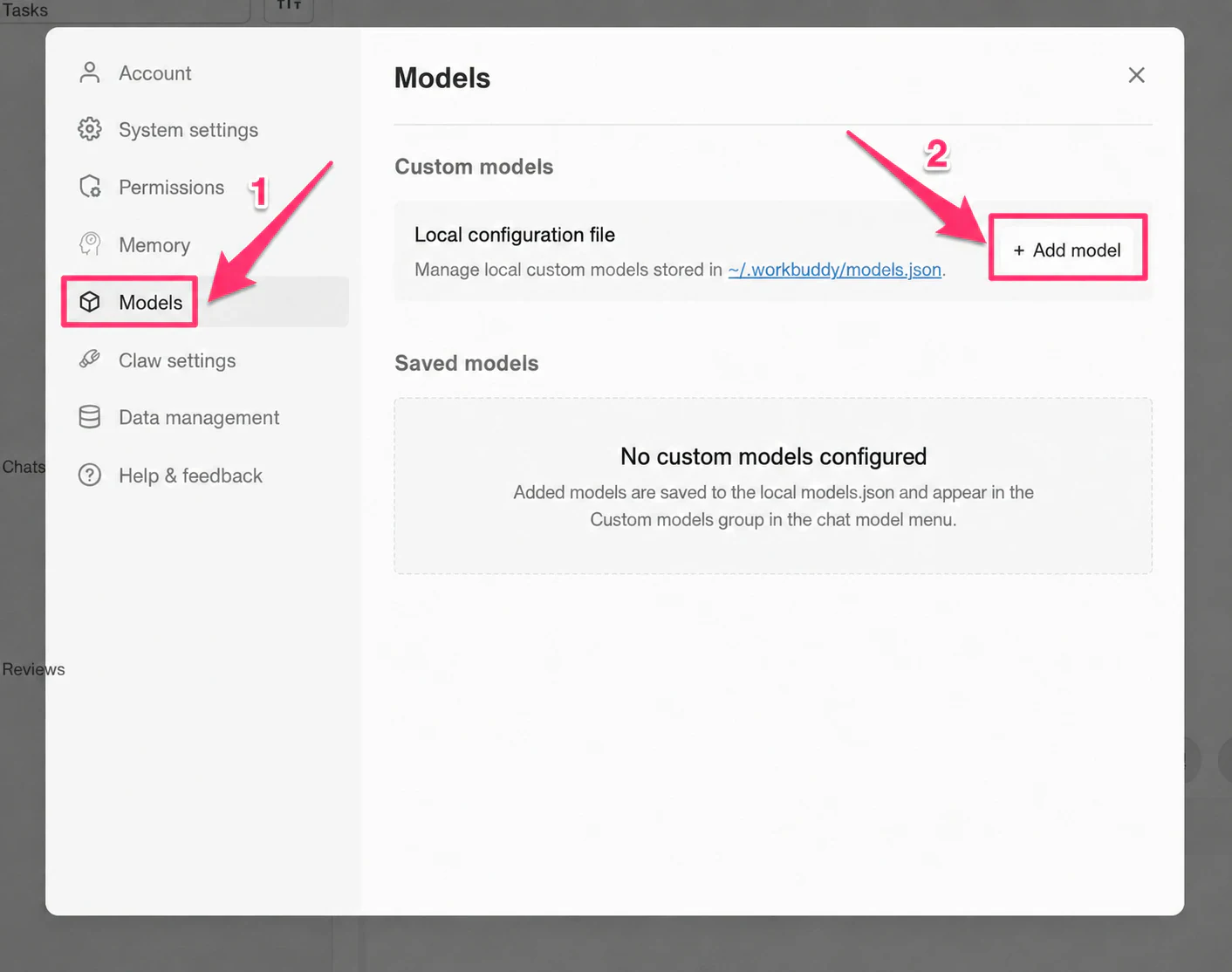
Click Models in the left navigation of the settings page, then click + Add Model on the right.
Step 3: Fill in Configuration
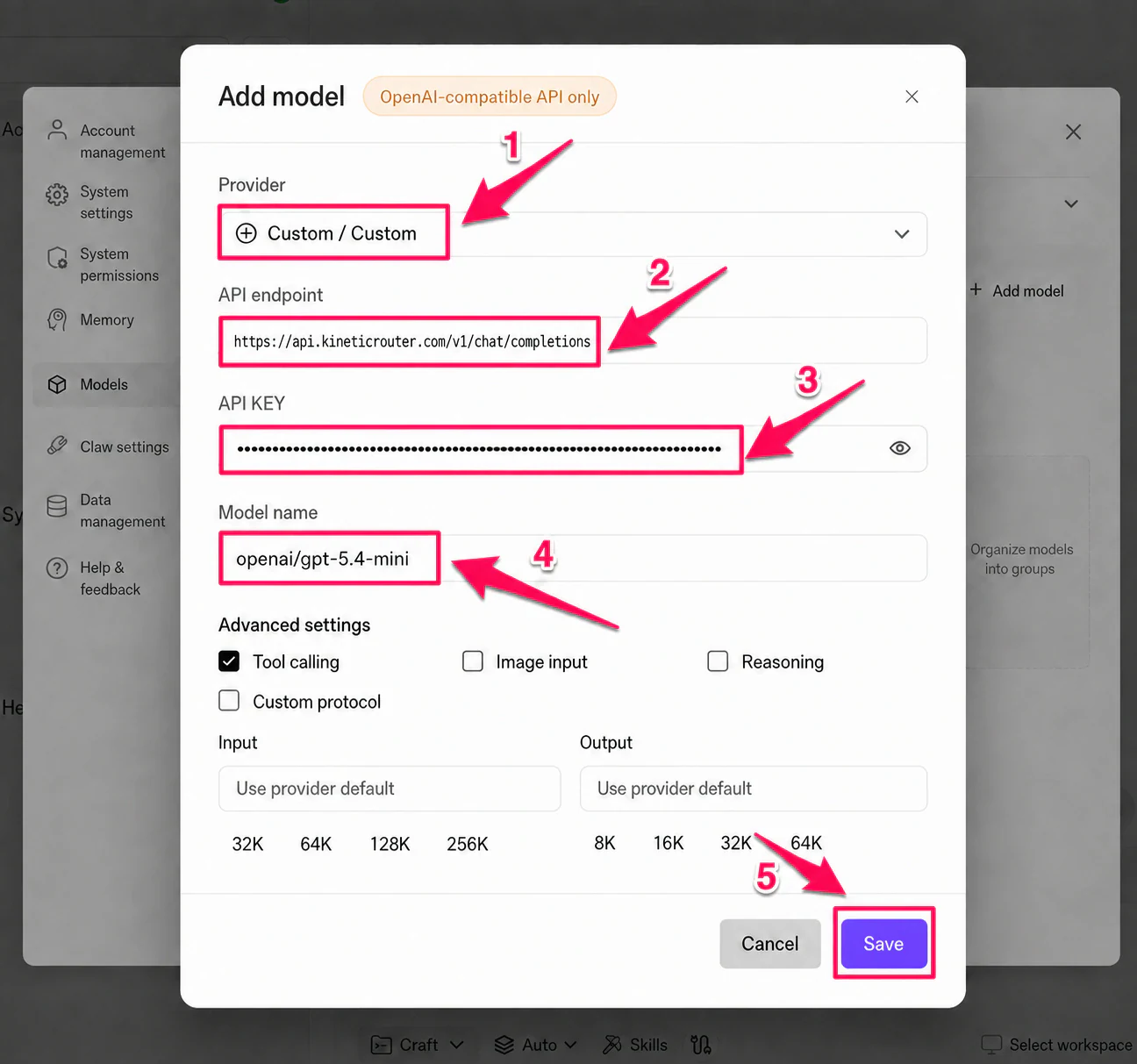
In the “Add Model” dialog, fill in the following:
| Field | Value |
|---|---|
| Provider | Custom |
| API Endpoint | https://api.kineticrouter.com/v1/chat/completions |
| API KEY | Your kineticRouter API Key |
| Model Name | The model ID you want, e.g. openai/gpt-5.4-mini |
WorkBuddy only supports the OpenAI-compatible protocol. Through kineticRouter’s /v1/chat/completions endpoint, you can access currently available GPT, Claude, Grok, DeepSeek, and other models — just enter the model ID in the Model Name field. See the Model Gallery for the live catalog.
Check the advanced options as needed:
| Option | Description |
|---|---|
| Tool Call | Check for models that support function calling (checked by default) |
| Image Input | Check when using vision models |
| Reasoning Mode | Check when using reasoning models |
Click Save when done.
Step 4: Confirm Model is Saved
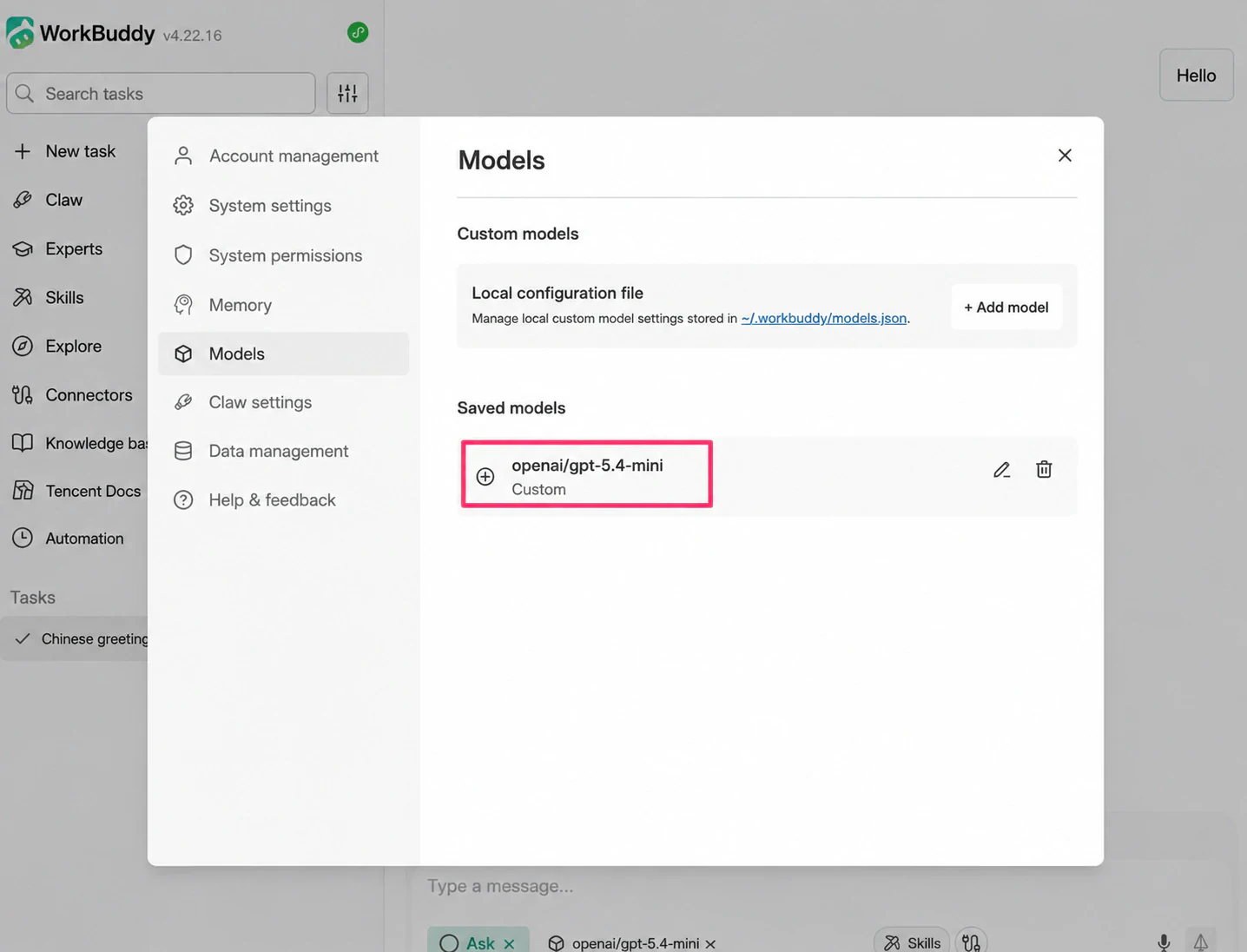
The model will appear in the “Saved Models” list after saving.
Step 5: Start Chatting
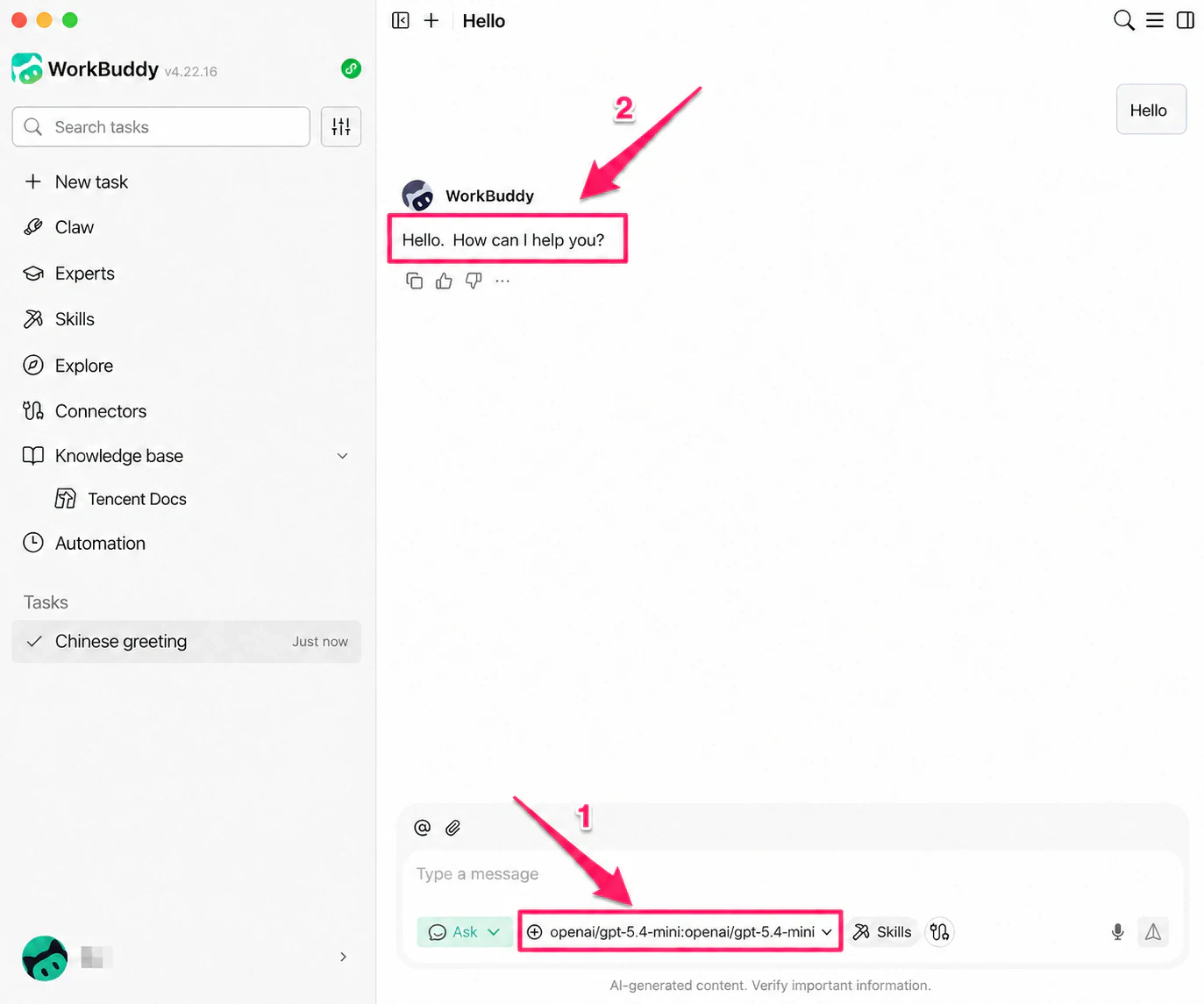
Return to the main interface, click the model selector at the bottom, choose your newly configured model under the “Custom Models” group, and start chatting.
Recommended Models
See the Model Gallery for recommended models.
FAQ
Q: Can I use Claude models?
Yes. Through kineticRouter’s OpenAI-compatible endpoint, you can use any currently available compatible model. Just enter the model ID in the Model Name field — see the Model Gallery for the live catalog.
Q: The model doesn’t appear in the selection list after saving
Try restarting WorkBuddy. Newly added models will appear under the “Custom Models” group in the model selector at the bottom of the chat interface.
Q: Request fails or API error
Check that the API endpoint is complete (https://api.kineticrouter.com/v1/chat/completions) and that the API KEY was copied in full from the kineticRouter Console with no extra spaces.